Chrome has no rotate or flip button, in an image tab or anywhere else. To turn an image, give it a CSS rotation: from the console in the image’s own tab, or from Inspect on a web page. Both change only how the image is drawn, and a reload puts it back. To keep a turned file, save the image and turn it in a photo app. With the Bellevue extension, Q and E turn an image a quarter turn either way, and H and V flip it.
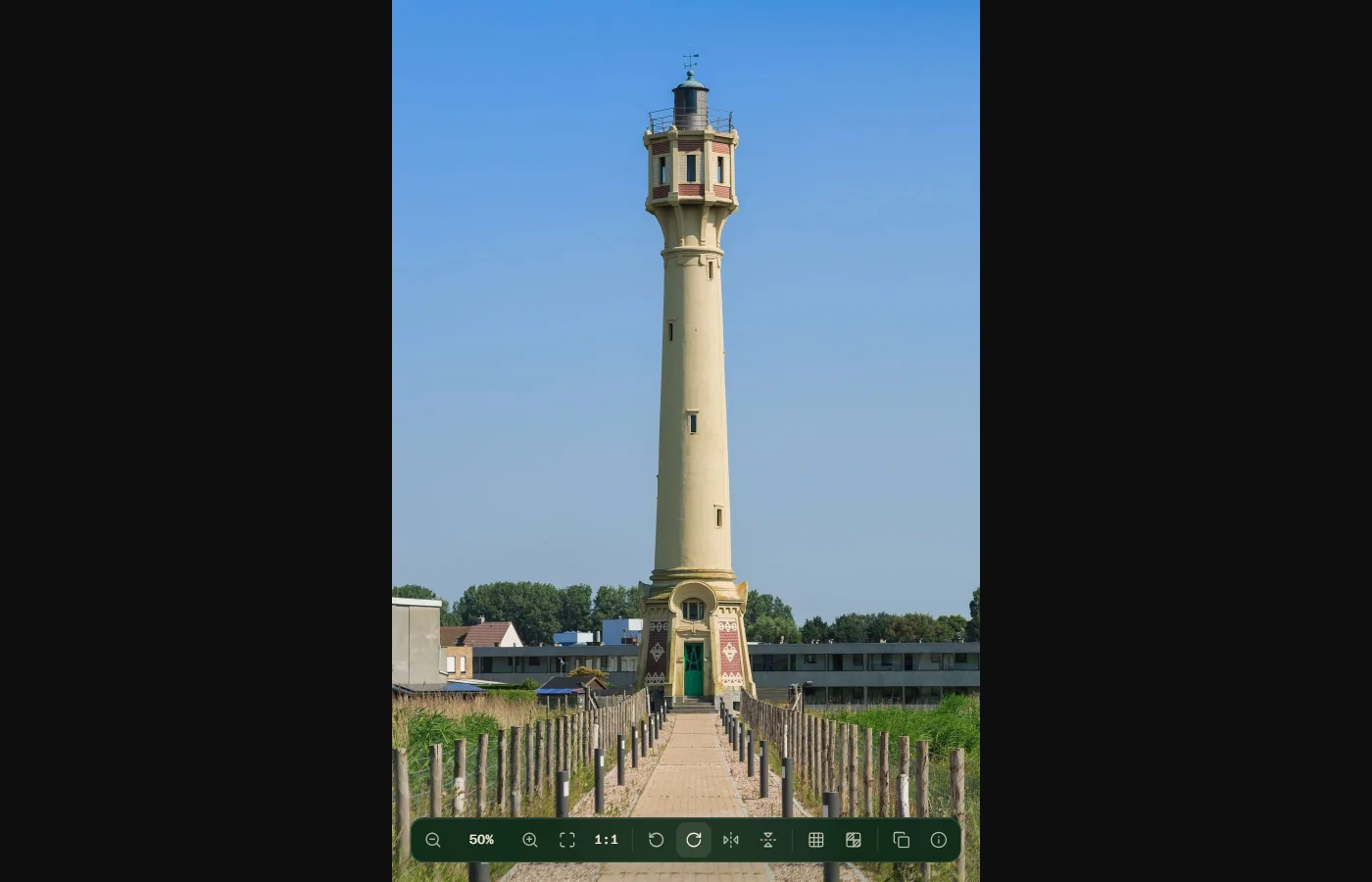
Every check below was made on 21 October 2026 in a 1400 × 900 window: the steps by hand in Chrome, and Bellevue 2.1.0 in Chromium, the open-source browser Chrome is built on.
Rotate, flip and straighten any image in Chrome. Install Bellevue →
Rotate or flip an image by hand
In an image’s own tab
For an image open on its own, from Open image in new tab or a direct link:
- Press F12 and switch to the Console tab.
- Paste this and press Enter. If Chrome warns about pasting, type
allow pasting, press Enter, and paste again.
document.head.insertAdjacentHTML("beforeend", `<style>
  img { rotate: 90deg; position: fixed; inset: 0; margin: auto;
        width: auto; height: auto; max-width: 100vh; max-height: 100vw }
</style>`)
That turns the image a quarter turn clockwise, and -90deg turns it the other way. A half turn or a mirror image keeps the image’s shape, so for those, replace the whole img { … } rule with one property: img { rotate: 180deg } turns it upside down, img { scale: -1 1 } flips it left to right, and img { scale: 1 -1 } flips it top to bottom.
It’s longer than the usual document.images[0].style.transform = "rotate(90deg)" for two reasons. A landscape photo fitted to the window is wider than the window is tall, so a quarter turn pushes it off the top and bottom: a 2000 × 1250 photo, fitted at 1400 × 875, stood 1400 pixels tall once turned, with 257 pixels cut off at each end. And Chrome rewrites the image’s own style when you click it to switch sizes or resize the window, which undoes the turn. That’s also why the console line for crisp pixels goes on the page, not the image. A rule in a stylesheet of its own survives both, and its sizes keep the turned image inside the window. With it, a 2000 × 1250 photo, a 1200 × 1800 photo and a 300 × 200 image each turned and stayed whole on screen, through a click and a window resize. A reload undoes it.
On a web page
- Right-click the image and choose Inspect.
- In the Styles pane, click inside
element.styleand typetransform: rotate(90deg), or the shorterrotate: 90deg, which does the same.
The page doesn’t make room. The image turns about its middle, so a landscape image turned a quarter sticks out above and below its box, over whatever is there. On Wikipedia’s Lighthouse article, a 250 × 187 thumbnail turned 90° covered most of its caption. A half turn or a flip keeps the image in its own box. Here too, a reload puts the page back.
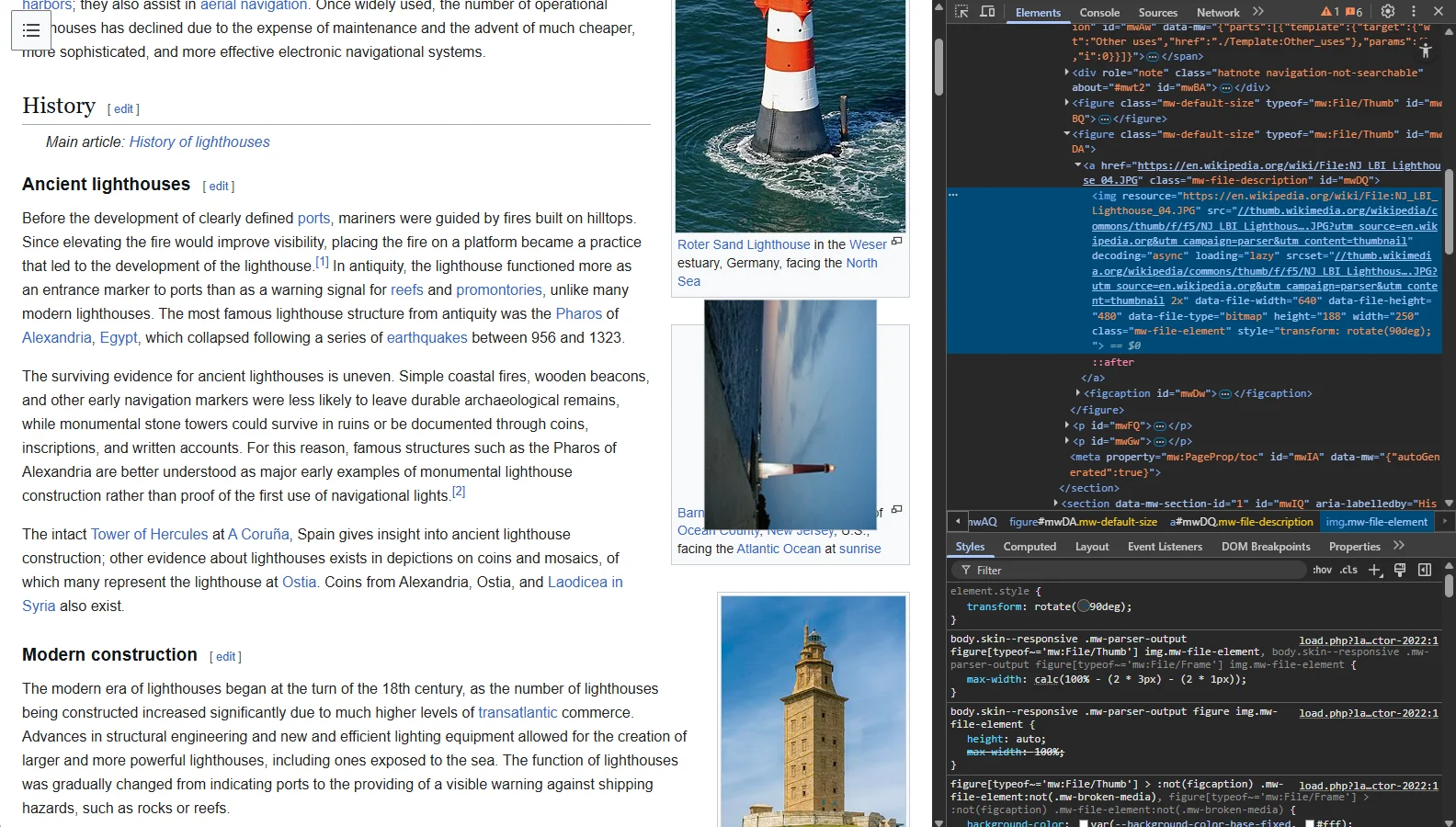
transform: rotate(90deg) added in Styles. Page: Wikipedia, CC BY-SA 4.0. Barnegat Lighthouse photo: Andrew Bossi, CC BY-SA 3.0Why a photo shows up sideways
Phone cameras often save a photo the way the sensor saw it, and add a tag to the file’s EXIF data, its orientation, saying which way is up. Chrome has followed that tag since Chrome 81 (Chrome Platform Status), released in April 2020, so a phone photo that still carries its tag shows upright. A photo that’s sideways in Chrome today has usually lost its tag on the way: a site or an app removed the file’s metadata without turning its pixels. Less often, the page’s CSS tells Chrome to ignore the tag with image-orientation: none.
One test file shows all three. It’s a 1200 × 1800 portrait photo stored on its side, 1800 × 1200, with an orientation tag that says to turn it 90° clockwise:
- With its tag, Chrome showed it upright at 1200 × 1800.
- With the tag removed and nothing else changed, it showed sideways at 1800 × 1200.
- On a page with
image-orientation: none, it showed sideways when the photo came from the page’s own site. Loaded from another site, it showed upright anyway: Chrome ignored the rule for another site’s image.
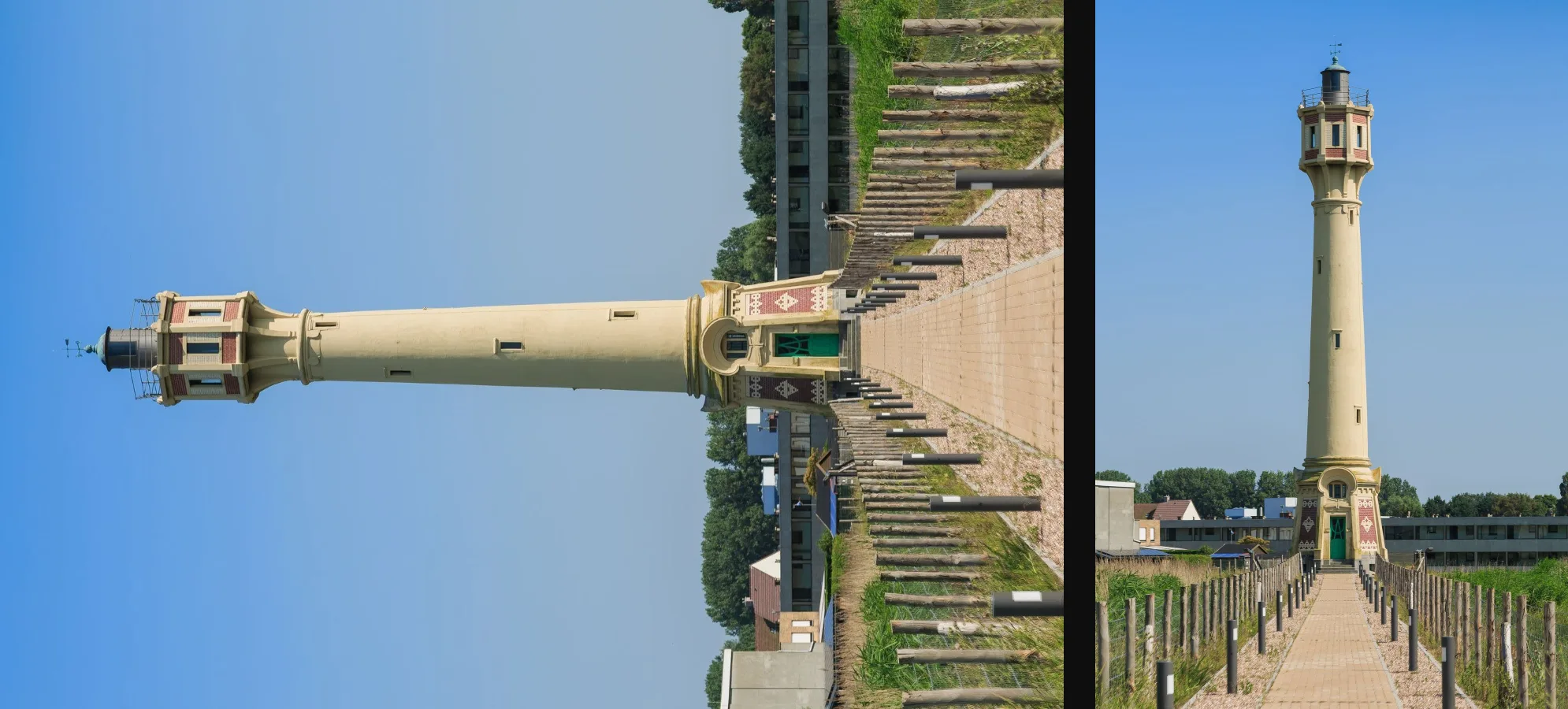
So Chrome’s handling is right, and a sideways photo is the upload’s problem. Someone else’s upload can’t be fixed from the browser, only turned on screen, by hand as above or with an extension. For a photo of your own that a site shows sideways, turn it in a photo app, save it, upload it again, and check how it shows.
Keep a turned copy
The CSS above, rotation extensions and Bellevue all turn the image on screen; the file stays as it was, and Save image as saves it unturned. To keep a turned copy, save the image, then turn it in a photo app:
- Windows Photos: open the photo in the editor (Ctrl + E). Its crop tools rotate clockwise and counterclockwise, flip both ways, and has a slider for turning by small angles (Microsoft).
- macOS Preview: the Rotate Left tool, or Rotate Right with Option held, and Tools › Flip Horizontal or Flip Vertical (Apple).
- ChromeOS Gallery: Crop & rotate at the top (Google).
Online flip tools do the same in a browser tab, often with the file uploaded to someone else’s server.
Rotate, flip and straighten with Bellevue
In Bellevue’s viewer, Q turns the image 90° counterclockwise and E clockwise, H flips it horizontally and V vertically. The same four are buttons on the viewer’s toolbar, which comes up when you point at the bottom edge of the viewer: Rotate counterclockwise, Rotate clockwise, Flip horizontally and Flip vertically, each with its key in the tooltip. All four keys can be changed in the settings.
The viewer runs in image tabs, in the images Bellevue opens on sites like Reddit and X, and in the full-screen view that a tap of Ctrl over a thumbnail opens. That last one covers a photo inside an article: tap Ctrl over it rather than inspecting it. The keys and the four buttons turned and mirrored the image in an image tab, in the Ctrl-tap view and in Reddit’s lightbox. A turned image fits by its turned shape: after a quarter turn, fitting it to the window, with a click or the fit button, fills the window’s height rather than its width.
Bellevue follows the orientation tag as Chrome does: the tagged test photo opened upright in its viewer and in its Alt hover popup.
Straighten a crooked photo or scan
A crooked horizon or a scan placed at a slant is a few degrees off, not 90. Hold Alt and turn the mouse wheel to turn the image 5° a notch, and add Ctrl for 0.5° a notch. Alt + + and - do the same a press at a time. A photo 7° off takes one notch and four fine ones. A setting reverses which way the wheel turns it.
A flip mirrors the tilt with the image, so a levelled photo stays level after H, as in the recording below.
Flip a drawing, or read mirrored text
H shows a drawing or a reference image left to right, as a mirror would. Text that a webcam or a selfie camera mirrored reads the right way round after H. The flip goes by what’s on screen, so after a quarter turn H still swaps left and right as you see them: turn a sideways photo upright first, then flip it.
It stays turned
Bellevue remembers the turn and the flips for each image, by its address, so it opens the same way next time, in its own tab or with a Ctrl tap over its thumbnail. A photo turned and flipped in its tab came back that way after the browser was closed and opened again, and opened that way with a Ctrl tap over its thumbnail too. An image put back the way it first opened is forgotten, and incognito windows save nothing. Zoom isn’t remembered. Sites that give an image a new address on every visit, such as Discord attachments, don’t match.
What it doesn’t do
Bellevue turns the image in its viewer, not where it sits on the page, and it doesn’t save or copy the image as turned. Ctrl + C copies the picture as the file has it: the sideways test photo, turned upright and flipped in the viewer, went to the clipboard at 1800 × 1200, still on its side. For a turned file, see the section above.
For zoom, pan and the rest of the viewer’s shortcuts, see the guide to Chrome’s image viewer.
Rotating images on the page instead
Some extensions turn an image where it sits. Image Manipulator does it from the right-click menu, which suits one sideways photo in an article, with no viewer to close afterwards. It’s one of the six extensions tested side by side on the same images.
Summary
- Chrome has no rotate or flip control. One CSS line turns or mirrors an image, from the console in its tab or from Inspect on a page, and a reload undoes it.
- A photo that’s sideways in Chrome has usually lost its orientation tag: Chrome has followed the tag since Chrome 81.
- To keep a turned file, save the image and turn it in Windows Photos, Preview or the ChromeOS Gallery.
- Bellevue turns an image with Q and E, flips it with H and V, straightens it with Alt and the wheel in steps down to 0.5°, and remembers the result for each image.
Rotate, flip and straighten any image in Chrome. Install Bellevue →