Chrome has no way to enlarge an image when you hover over it. The closest it gets is right-clicking a thumbnail and choosing Open image in new tab, which opens the copy the page loaded, and on most sites that’s the small one. To see the full-size original on hover you need an extension. In Bellevue, hold Alt over a thumbnail and the original appears in a popup beside the cursor; tap Ctrl to open it full-screen with zoom and pan.
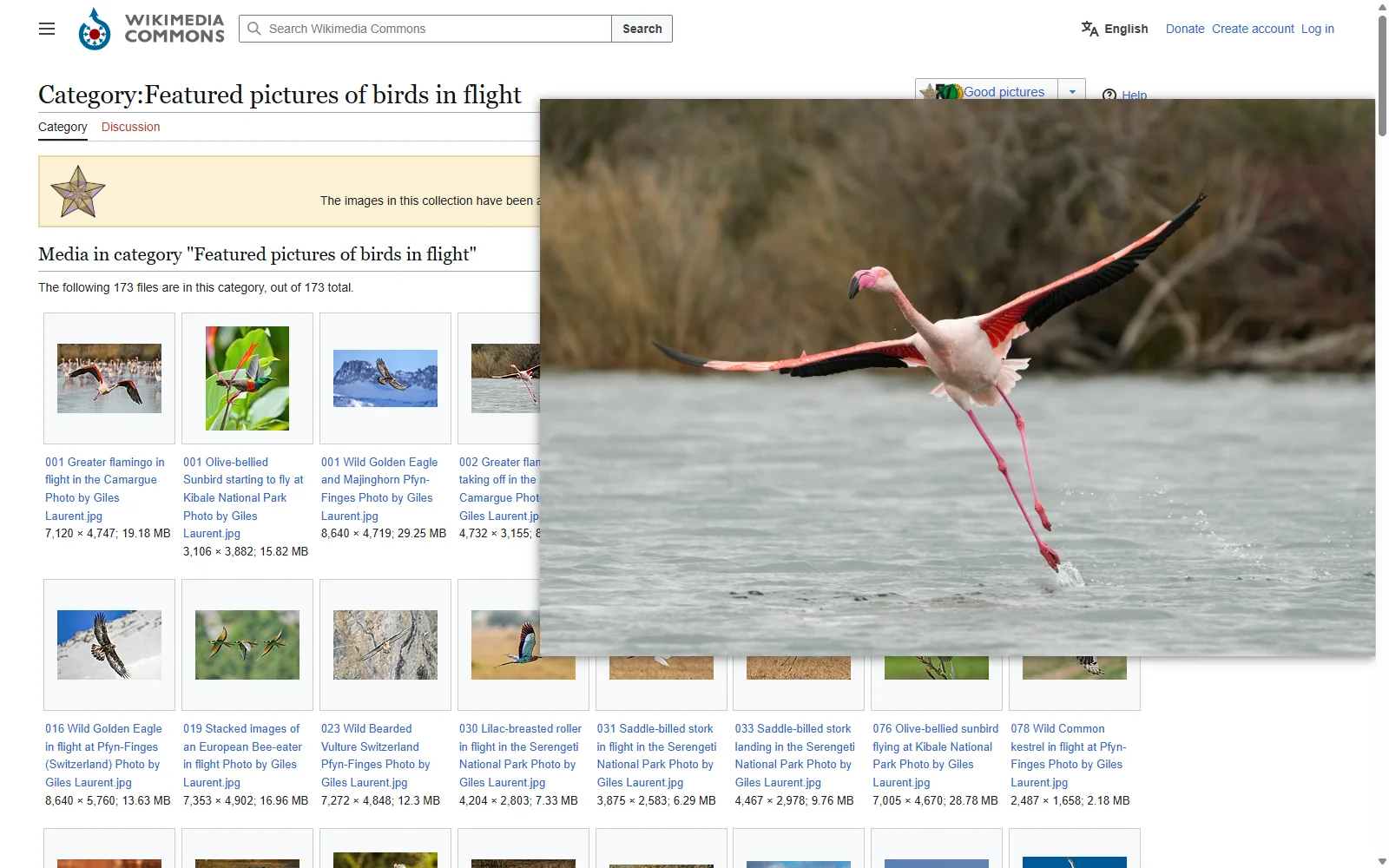
Thumbnails are resized copies. On the Wikimedia Commons page of featured pictures of birds in flight, a flamingo’s thumbnail is 120 pixels wide, and the photo behind it is 4732. Clicking through to each file page to find that out costs a page load and your place in the gallery.
What Chrome does without an extension
Chrome shows nothing when the cursor rests on an image. What it offers is a right-click menu item and a modifier click:
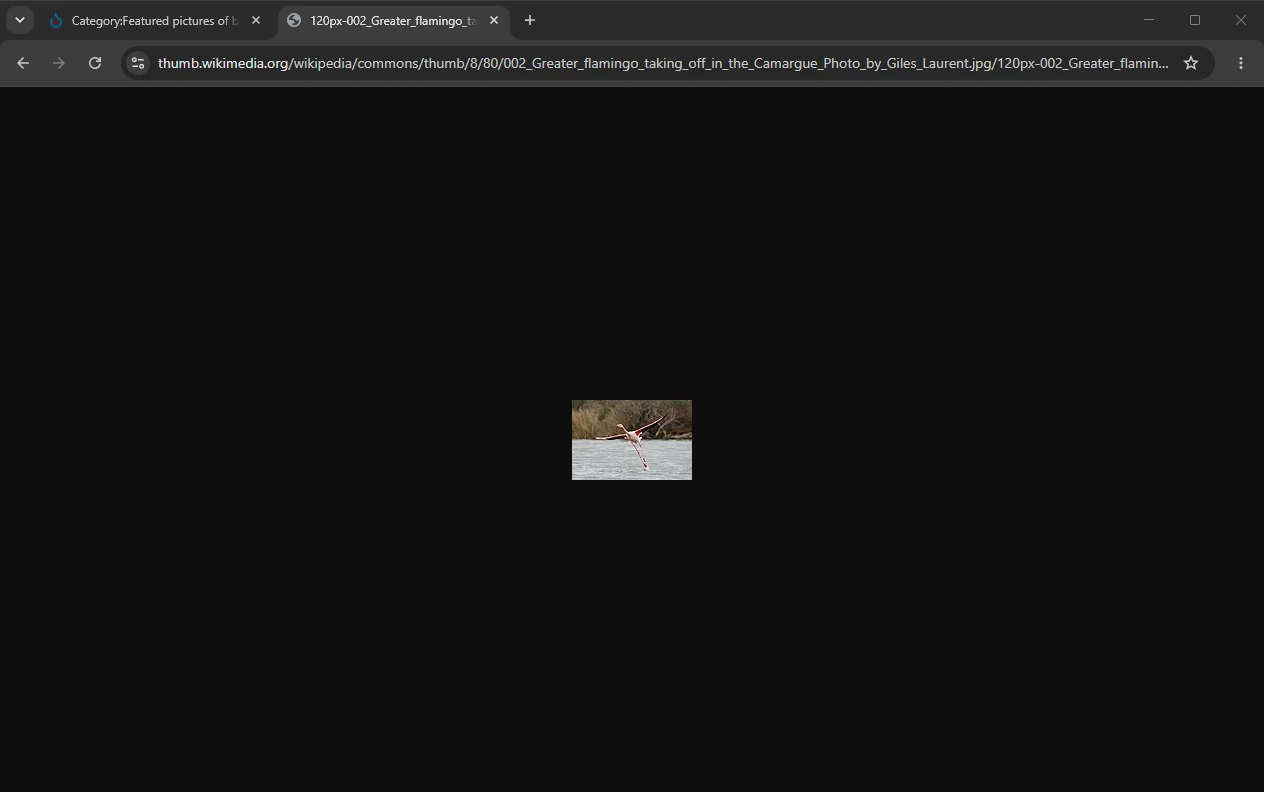
- Open image in new tab opens the file the page loaded. For a gallery, a feed or a search result, that’s the thumbnail, at the size the page asked for.
- Ctrl + click on a thumbnail that links somewhere opens the page it links to in a background tab, such as the post or the product, not the image.
Some sites put the size in the image address, and editing it gets the original by hand: name=orig for X images, originals in place of the size folder on Pinterest, and i.redd.it in place of Reddit’s resized preview.redd.it copies. Each trick works on one site only, and each takes a new tab and an edit per image.
See the full-size image in a hover popup
With Bellevue, hold Alt and point at an image. The original appears in a popup beside the cursor and follows it while you move over the image. Let go of Alt, or move off the image, and the popup disappears.
- It shows the largest version Bellevue finds, usually the original. While that loads, the popup shows the thumbnail, then swaps to the larger image once it has loaded. If there’s nothing larger, the thumbnail stays.
- It fits the window. The popup opens on the side of the cursor with more room and stays on that side while you move. A large original is shrunk to fit that space, and a small one isn’t enlarged.
- It works on grids without real images. Many sites draw grid cells as CSS backgrounds rather than
<img>elements, and the popup picks those up too.
Checked signed in, in a 1400 × 900 window, on 16 September 2026 (the Commons row on 21 September), for up to three images on each page. The first column is the width of the copy the page loaded, which is what Open image in new tab opens without an extension. The second is the width of the image in Bellevue’s popup:
| Page | Width the page loaded | Width in the popup |
|---|---|---|
| Wikimedia Commons, featured pictures of birds in flight | 120, 120, 120 | 7120, 3106, 8640 |
| Reddit, r/pics | 699, 699, 699 | 2268, 3979, 3072 |
| X, image posts from NASA | 680, 679, 680 | 2047, 1280, 4096 |
| Pinterest, search for wallpaper 4k | 236, 235, 235 | 3200, 4096, 3840 |
| Amazon, search for laptop | 259, 277, 281 | 1828, 2560, 2223 |
| eBay, sneakers | 768, 960, 960 | 768, 1482, 1063 |
Sample: the first images in view on each page, in pixels. Widths were read from the decoded images.
The gap depends on the site. Pinterest and Commons grids load copies a fourteenth to about a seventieth of the original’s width, and Reddit and X load feed copies of around 700 pixels. eBay’s grid already loads large copies, so its originals were at most about half as wide again, and one listing photo was already at full size.
Choose when the popup appears
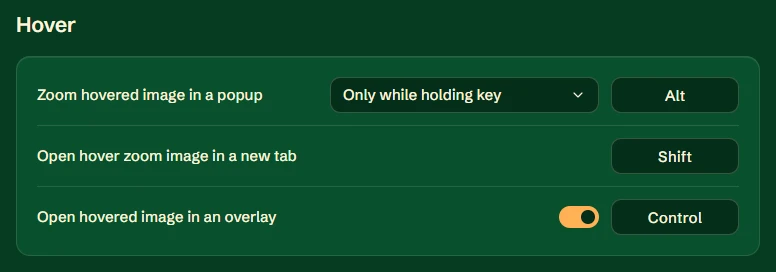
Click Bellevue’s icon in the toolbar to open its settings, and go to Hover. The first row, Zoom hovered image in a popup, has three choices:
| Setting | What happens |
|---|---|
| Disabled | No popup |
| On hover (hold key to suppress) | The popup appears once the cursor rests on an image for a moment. Hold the key to browse without it |
| Only while holding key (default) | The popup appears only while the key is held down |
The key is the button at the end of the same row. Click it and press the key you want instead of Alt. Changes apply to pages loaded after you make them.
Holding a key is the default because a popup on every hover gets in the way of ordinary browsing. On a news site, a shop or a feed, the cursor pauses over images all the time on its way to a link or a button, and a popup that opens at every pause covers the page around it. With the key, the popup appears only when you ask for it. On hover suits pages where looking at images is the whole point, such as a photo gallery or a search for wallpapers, and holding the key there does the opposite: it keeps the popup away while you reach for something.
Open the image full-screen with a key tap
The popup is a glance. At most it fills the space beside the cursor, and you can’t zoom into it. For a closer look, point at the image and tap Ctrl: press it and release it without pressing anything else. The original opens full-screen in Bellevue’s viewer over the page, where you can zoom, pan and rotate it. Tap Ctrl again to close it.
Only a clean tap counts. Ctrl + C, Ctrl + click and Ctrl + mouse wheel involve another key, a click or a scroll while Ctrl is down, so they keep doing what they always do. The tap works with or without the popup on screen, and it is the last row in Hover settings, Open hovered image in an overlay, where it can be switched off or moved to another key.
Open the hovered image in a new tab
With the popup on screen, press Shift. The image in the popup opens in a background tab next to the current one, and the popup stays where it is. That works while holding Alt and in On hover mode alike, so you can move across a grid and queue up the originals you want to keep, then go through the tabs afterwards.
The key is set in the second row of Hover settings, Open hover zoom image in a new tab. Two things follow from the default. Shift + click on a link while the popup is up opens the image tab as well as the link. And on Windows set up to switch keyboard layouts with Alt + Shift, opening a tab while holding Alt also switches the layout; changing either key avoids it.
Where hover zoom doesn’t reach
- Images inside embedded frames, such as an iframe with someone else’s gallery in it.
- Video. The popup shows images only.
- Images Bellevue’s viewer is already showing: an image opened in its own tab, the full-screen viewer, and the viewer Bellevue puts inside the image views of Reddit, X, Fandom and Bilibili. Zoom into those directly.
Other hover-zoom extensions
Bellevue isn’t the only extension that does this. Hover Zoom+, which is open source, and Imagus Reborn both show images in a popup on hover, with rules per site for finding the full-size version.
In Bellevue, the full-size lookup behind the popup is the same one behind the Ctrl tap and the View image in current tab item it adds to Chrome’s image menu, so all three open the same original. Bellevue also opens that original in a full viewer. And Bellevue changes how images open on Reddit, X, Instagram, Pinterest, Pixiv and Fandom themselves, including Instagram profile pictures, which can’t be enlarged by hand.
Summary
- Chrome has no hover preview, and Open image in new tab opens the copy the page loaded: in the checks above, 120 to 960 pixels wide against originals of up to 8640.
- With Bellevue, hold Alt over an image to see the original in a popup, tap Ctrl to open it full-screen with zoom and pan, and press Shift with the popup up to open it in a background tab.
- In settings, under Hover, the popup can appear only while the key is held, on every hover, or never, and each key can be changed.
See any thumbnail at full size on hover. Install Bellevue →