Chrome’s built-in image viewer has two sizes, fit to window and actual size. Page zoom, Ctrl + + and Ctrl + -, reaches the sizes in between, in fixed steps from 25% to 500% and not toward the mouse cursor. On a touchpad, pinching zooms in around the spot between your fingers. Smooth zoom toward the mouse cursor, drag panning and rotation take an extension.
An image usually gets its own tab so you can look at the details, and that’s where Chrome’s viewer runs out. It toggles between two fixed sizes, and a zoomed-in image is moved with scrollbars. Clicking an image smaller than the window does nothing, so page zoom or a pinch is the only way to enlarge it.
This guide covers what Chrome’s viewer does, how far page zoom and pinch zoom take it, and what the Bellevue extension adds.
Zoom and pan any image in Chrome. Install Bellevue →
What Chrome’s viewer does
When you open an image file directly, Chrome wraps it in a minimal page of its own:
- A large image is shrunk to fit the window. Clicking it switches to its actual size with scrollbars, and clicking again fits it back. Those are the only two sizes.
- A small image is shown at its actual size in the middle of the window, and clicking it does nothing.
- Moving around a large image at actual size means scrollbars or the mouse wheel.
Getting more out of it by hand
Page zoom
Chrome’s page zoom works on image tabs too:
- Ctrl + + and Ctrl + - step the zoom up and down, and Ctrl + 0 resets it.
- Ctrl + mouse wheel does the same with the mouse.
- Shift + mouse wheel scrolls sideways, which is the quickest way across a wide image.
The steps are fixed. Chromium’s source lists them as 25, 33, 50, 67, 75, 80, 90, 100, 110, 125, 150, 175, 200, 250, 300, 400 and 500%, so going from 100% to the top takes nine presses. 500% is the ceiling, which matters most on a small image: a 32 × 32 icon stops at 160 × 160.
Page zoom has two more limits. It doesn’t zoom toward where your cursor is. And Chrome saves the zoom level for the site, so it carries over to other images from the same site.
Pinch zoom on a touchpad
A touchpad pinch does what page zoom can’t. Spread two fingers over a detail and Chrome zooms in around that spot, whether the image is fitted to the window or smaller than it. Pinch the other way to zoom back out. The pinch stays in its own tab rather than being saved for the site.
Checked in Chromium on 15 September 2026: a 4× touchpad pinch at the middle of a 128 × 128 image tab enlarged the view four times, centered on the pinch point. The guide to viewing wimmelbilder combines pinching with the arrow keys to search a detailed picture row by row.
Smooth zoom and pan with Bellevue
Bellevue replaces Chrome’s viewer in image tabs with its own, which zooms with the mouse wheel, pans by dragging and rotates.
Smooth zoom with the mouse wheel
Scroll your mouse wheel to zoom in and out smoothly. Each notch zooms by 10%, so you can stop at any size. The zoom centers on your mouse cursor, so you can zoom directly into the area you’re interested in.
This works on images of any size. Small images can be enlarged for closer inspection, and large images can be zoomed beyond their actual size to see fine details. Clicking switches between fitting the window and actual size, and a small image is enlarged to fill the window.
Click and drag to pan
Once you’ve zoomed in, click and drag anywhere on the image to move around.
To scroll instead, hold Ctrl while turning the mouse wheel to scroll vertically, or Shift to scroll horizontally. Clicking the middle mouse button starts continuous panning in the direction you move the mouse, and a second click stops it.
Rotate, flip and other controls
Everything else is on the viewer’s toolbar, which comes up when you point at the bottom edge of the viewer and goes again when you move away. It holds zoom in and out with the zoom level between them, fit to window, actual size, rotate and flip both ways, sharp pixels, a checkered background, copy, and image info. Clicking the zoom level switches between fitting the window and actual size, as a click on the image does. Show toolbar in Bellevue’s settings, under Viewer, keeps it on screen or turns it off.
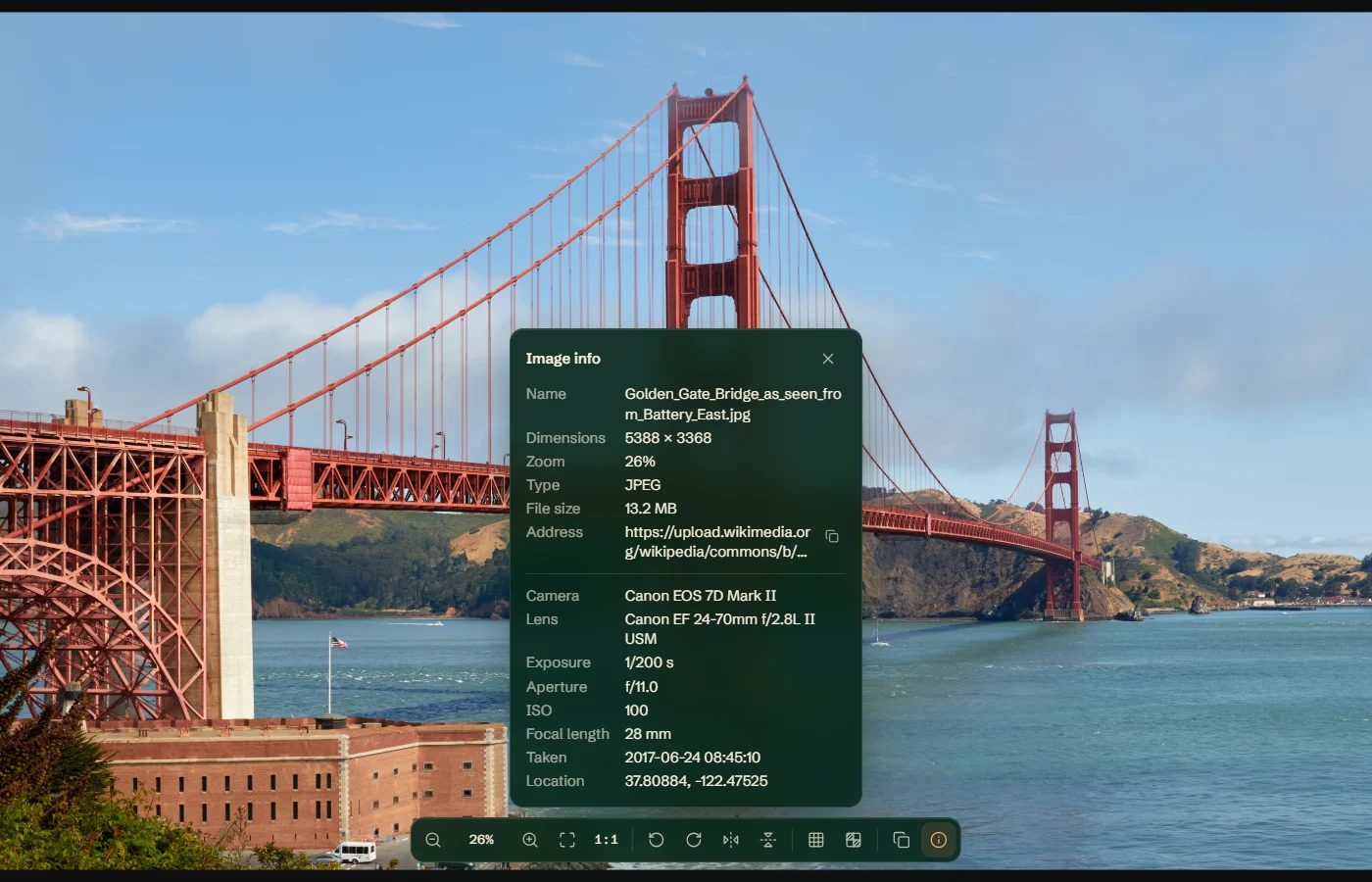
Image info lists the file’s name, dimensions, type and size, its address, and the camera data in it, such as the camera, exposure and where the photo was taken. Most images on social sites carry none, and the panel says so.
Each button’s tooltip names its key, so the toolbar is also where to learn them. These are the defaults, and the letter and arrow keys can be changed in Bellevue’s settings:
| Action | Shortcut |
|---|---|
| Rotate 90° | Q / E |
| Rotate in 5° steps | Alt + mouse wheel, or Alt + + / - (add Ctrl for 0.5°) |
| Flip horizontally / vertically | H / V |
| Zoom in / out | + / - |
| Move the view | Arrow keys |
| Show pixels without smoothing | P |
| Checkered background for transparency | T |
| Copy the image | Ctrl + C |
Rotation, flips and pixelated rendering are remembered for each image, so it opens the same way the next time, even after a browser restart. Zoom and pan are not: an image always opens at the starting zoom set in the settings.
The settings also control how an image first appears (actual size, fill the window, or fill only if it’s larger than the window), where it’s placed, and whether the background is a solid color or a blurred copy of the image. If you prefer Chrome’s wheel behavior, a setting swaps the wheel back to scrolling, with Ctrl + wheel to zoom.
The P key is worth knowing about for pixel art and screenshots. See how to pixelate zoomed-in images.
SVG images
SVG files get an even plainer viewer. Chrome draws an SVG like a web page, on a white background with nothing to click, and where it lands depends on the file:
- An SVG that declares a width and height is drawn at that size in the top-left corner. If it’s larger than the window, you scroll.
- An SVG that doesn’t is stretched to fill the window, keeping its proportions.
Checked in Chromium on 15 September 2026 with two copies of the same 300 × 200 drawing in a 1000 × 700 window: the copy with width and height sat at 300 × 200 in the corner, and the copy with only a viewBox filled the window’s width at 1000 × 667, centered vertically.
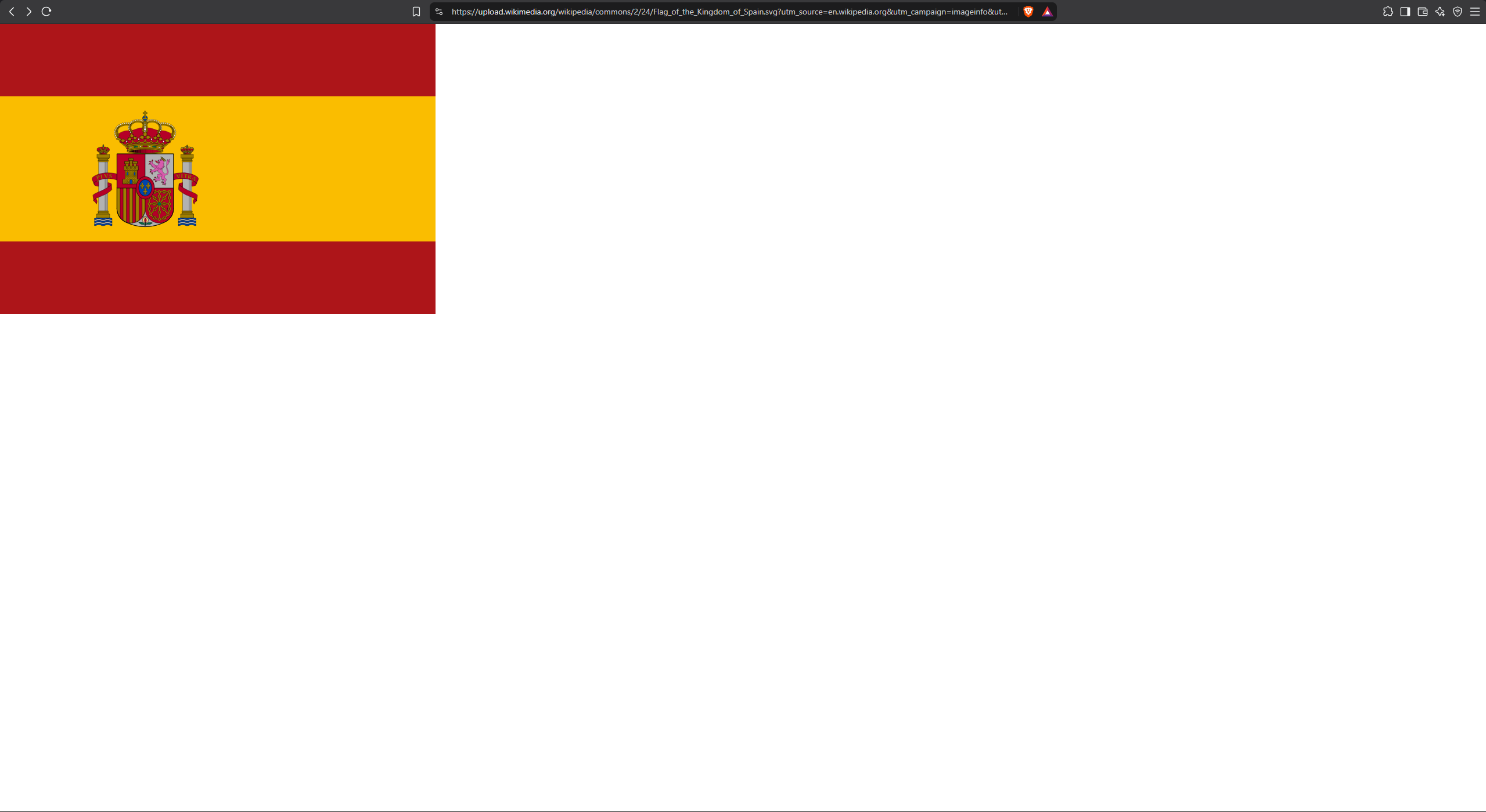
Page zoom helps here more than with other formats. Because an SVG is vector graphics, Ctrl + + redraws it sharply at every step rather than enlarging pixels. An SVG with a width and height still stays pinned to the corner.
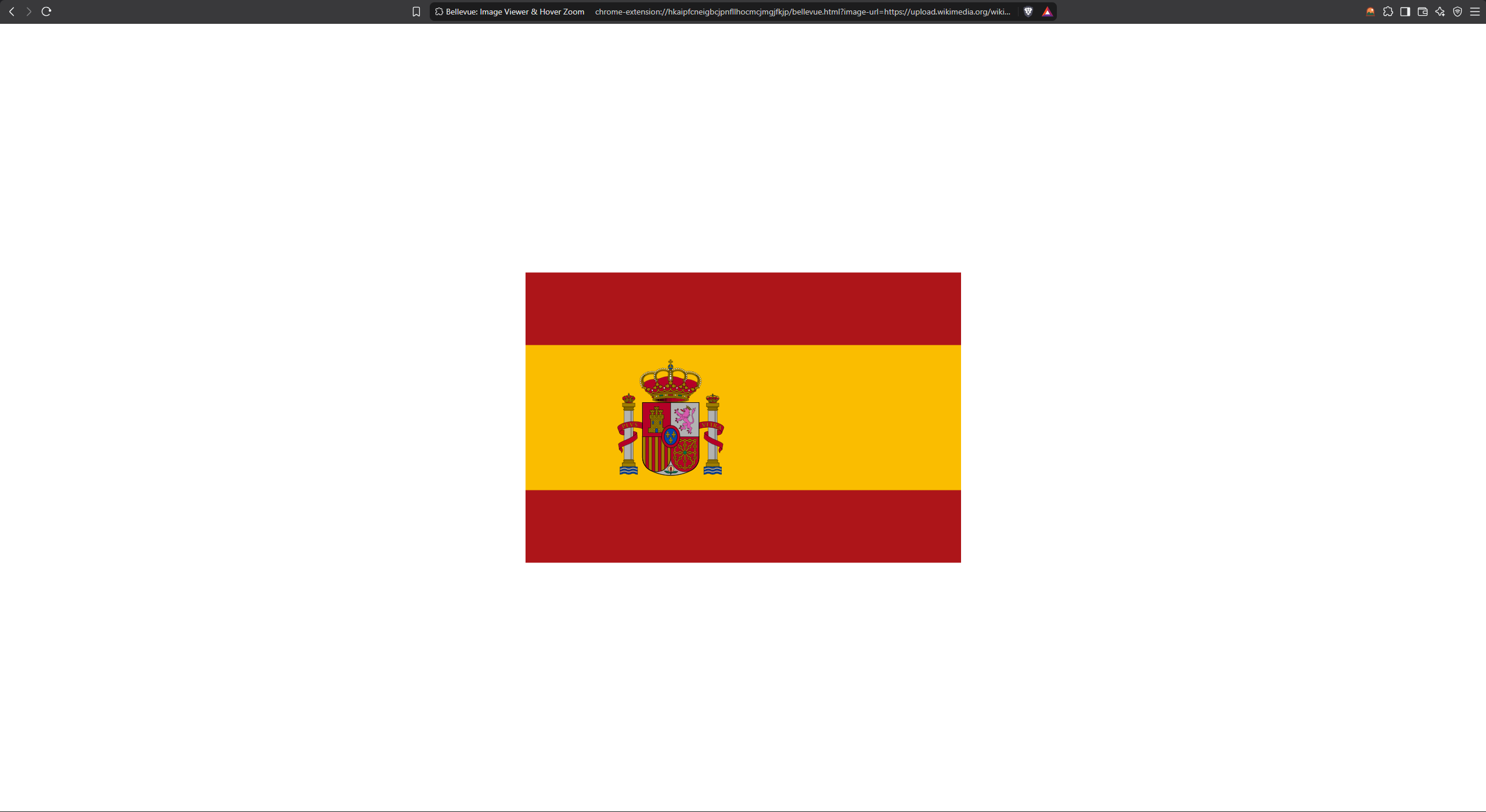
Bellevue opens SVG files in the same viewer as other images. It centers the image, puts it on a white background (a color you can set separately from the one other images use), and adds the same zoom, pan and rotate controls.
Summary
- Chrome’s image viewer gives you two sizes, fit and actual, and scrollbars to move around.
- By hand: page zoom (Ctrl + +/-) steps from 25% to 500% and is saved for the site, and a touchpad pinch zooms toward a spot in one tab. Page zoom works best on SVG files, which stay sharp.
- Bellevue adds smooth cursor-centered zoom, drag panning, rotation, flipping and pixelated rendering to images and SVG files alike, on a toolbar that names each action’s key, with the file’s details and camera data a click away.
Other extensions replace Chrome’s viewer too, some with a photo editor built in. The image viewer extensions for Chrome, tested compares six of them on the same images.
Beyond Chrome’s default viewer, Bellevue also changes how images open on Reddit and image hosting sites (the hosts it supports), and lets you see a thumbnail full-size on hover without opening it.
Zoom and pan any image in Chrome. Install Bellevue →