To explore a wimmelbild in Chrome, open the full-resolution file in its own tab and check its size in the tab title. On a touchpad, pinch to zoom straight into a detail. Without one, click the image to see it at actual size and sweep across it with the arrow keys, with the same picture fitted to the window in a second tab as a map. Zooming toward the mouse cursor and dragging the picture around take an extension such as Bellevue.
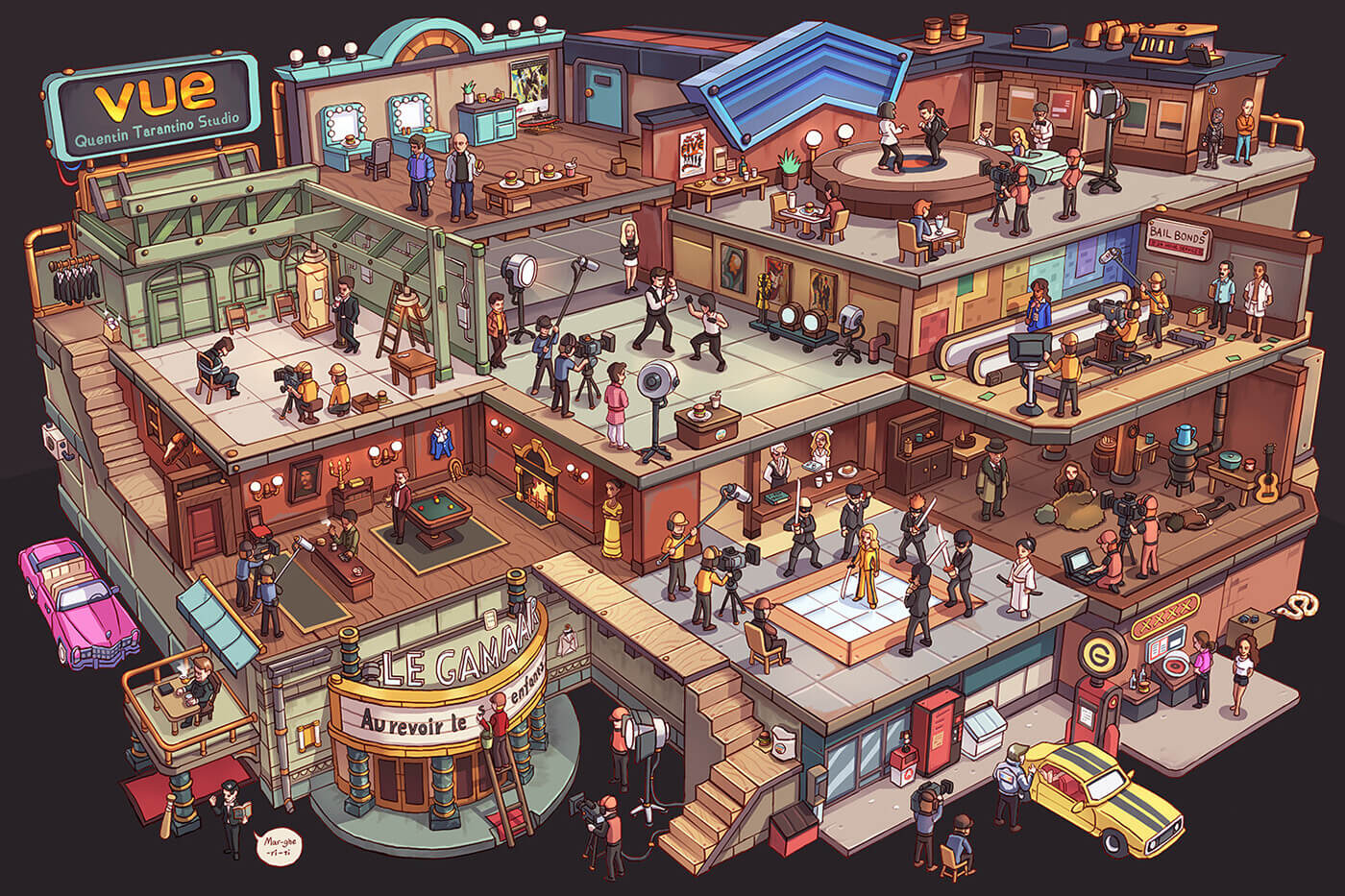
A wimmelbild (German for “teeming picture”, plural wimmelbilder) is a large, detailed illustration packed with tiny characters, small scenes and hidden jokes, meant to be searched rather than taken in at a glance. The Where’s Wally? books are a well-known example. You scan the whole scene, then zoom into one corner, then follow a character across the picture, and that back and forth is what Chrome’s image viewer is worst at.
Explore every hidden detail. Install Bellevue →
Where Chrome’s viewer falls short
Chrome shows a large image at one of two sizes, fitted to the window or at its actual size, and you move around with the scrollbars or the mouse wheel. Page zoom, Ctrl + + or Ctrl + mouse wheel, reaches the sizes in between, but in fixed steps and not toward the cursor, so the detail you aimed at slides out of view with each step. The guide to Chrome’s image viewer covers these controls in full. For a wimmelbild they add up to zooming, scrolling and zooming again.
Exploring a wimmelbild by hand
Chrome has more for this than its two sizes suggest. Each technique below was checked in Chromium on 15 September 2026, on the film studio picture at the top, wimmelbild.jpg, opened in its own tab.
Start from the full-resolution file
Many sites show a resized copy, and zooming into a copy can’t bring back details it has already thrown away. Open the image in its own tab and look at the tab title: Chrome adds the dimensions after the file name, as in wimmelbild.jpg (1400×933). Compare that with the largest size the site offers before you start searching.
- On Reddit, click the image on its post to open the lightbox, which loads the original from
i.redd.it(details). The feed itself shows a resized copy, too small for a busy picture. - On Pixiv, signed in, open the illustration’s link rather than its image (details).
- On a Fandom wiki, where articles show most images at a fraction of their width, open the image’s link from the article rather than the image itself (details).
Zooming past the file’s actual size adds no detail either. Chrome enlarges the pixels and blends them, which is why zoomed-in images turn blurry.
Pinch to zoom into a detail
On a touchpad, spread two fingers over the corner of the scene you want to search, and Chrome zooms in around that spot straight from the fitted view, so you go from the whole scene to one tiny character without scrolling to find it again. The guide to Chrome’s image viewer covers how pinching differs from page zoom.
Sweep the picture row by row
To be sure nothing is missed, search the picture in rows rather than jumping around:
- Zoom in, by pinching or by clicking the image to see it at actual size.
- Press Home to go to the top.
- Hold → to cross the first row.
- Press Page Down to move down to the next row. It moves a little less than a screen, so each row overlaps the last.
- Hold ← to cross that row back, and repeat.
The arrow keys, Home and Page Down move the pinched view the same way.
Keep a map in a second tab
Open the same image in a second tab and leave it fitted to the window. That tab shows the whole scene, so you can find the next area to search there, then switch back to the zoomed tab. Clicking to actual size and pinching change only the tab you do them in. Page zoom doesn’t: Chrome saves the zoom level for the site, so Ctrl + + in one tab zooms the map too.
Smooth zoom and pan with Bellevue
Bellevue replaces Chrome’s image viewer with one that zooms with the mouse wheel. The zoom centers on your cursor and stops at any level, so you hover over a detail and scroll to zoom straight into it.
Once zoomed, click and drag anywhere to move around, without scrollbars. Zooming out to scan, zooming in on something, and dragging to see what’s next to it become one motion instead of separate steps. The arrow keys also move the view, 50 screen pixels per press, for nudging a detail into place.
Many wimmelbild artists share work on Reddit communities like r/wimmelbilder and r/isometric. Bellevue’s viewer works there too, loading the full-size image and hiding Reddit’s header and footer. See how it fixes Reddit’s image viewer.
Summary
- A wimmelbild needs you to scan the whole scene and zoom in on exact spots, which Chrome’s two sizes and page zoom make slow.
- By hand: open the full-resolution file and check its size in the tab title, pinch to zoom into a detail, sweep the picture with Home, the arrow keys and Page Down, and keep the whole picture in a second tab as a map.
- Bellevue adds wheel zoom that follows your cursor and drag panning, so exploring the picture is one continuous motion.
Explore every hidden detail. Install Bellevue →